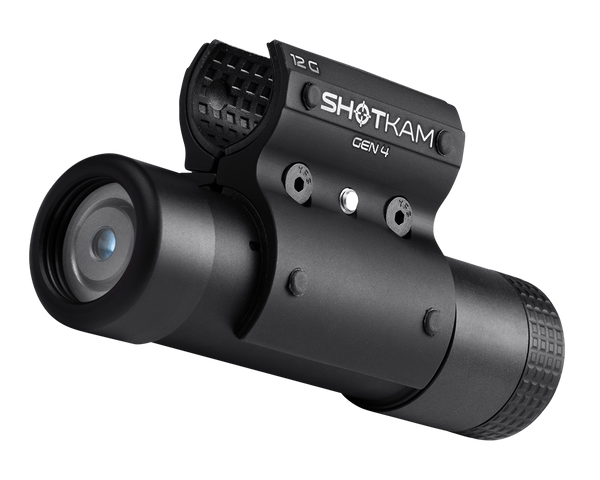
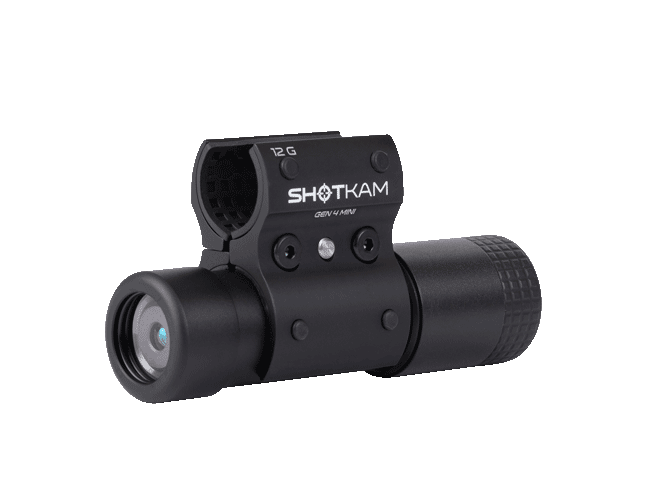

Guia ShotKam para Caça de Perus
O seu ShotKam está pronto para a temporada de perus? Neste artigo, abordamos as configurações e técnicas para o ajudar a captar a ação quando um velho macho se aproxima dos iscos.
Veja caçadas reais a perus captadas com o ShotKam Gen 4:
Preparação Pré-Caça
Muitas das configurações e ajustes do ShotKam podem ser feitos no dia anterior à caçada. Assim, fica com menos uma preocupação quando estiver concentrado em conseguir o peru. O ShotKam foi concebido para captar esses momentos no terreno com o mínimo esforço por parte do caçador. Depois de seguir as dicas de configuração abaixo, tudo o que resta fazer no dia da caçada é ligar o ShotKam e esperar que os perus colaborem.

Pode também consultar o nosso artigo no Centro de Ajuda sobre caça ao peru para mais dicas antes de ir para o terreno.
Carregamento e Montagem
Primeiro, carregue completamente o seu ShotKam utilizando o cabo USB e o adaptador de parede fornecidos. Uma vez ligado, aparecerá um LED vermelho intermitente. Deixe carregar até três horas ou até o LED vermelho intermitente ficar fixo.
Monte o ShotKam na sua arma entre 7,5 cm e 17,5 cm (3 a 7 polegadas) da boca do cano. Como mencionado no nosso artigo “Dica Principal”, a chave Allen fornecida pode servir como referência de 12,7 cm (5 polegadas) ao medir da pega até à ponta, ajudando a garantir uma montagem consistente todas as vezes.
Ligar à Aplicação ShotKam
Com o ShotKam carregado e montado, comece com a câmara desligada e pressione o botão de alimentação durante três segundos até aparecerem dois LEDs para activar o WiFi. Depois, ligue o seu smartphone ou tablet e abra a aplicação ShotKam.
As configurações seguintes são definidas na aplicação ShotKam antes da caçada.
Configurar as Definições na Aplicação ShotKam

Tipo de Alvo
Vá a Definições e, em Tipo de Alvo, seleccione Ground Game. Isto ajusta a duração da gravação para 15 segundos antes e 20 segundos depois do disparo. Recomendamos esta definição para a caça ao peru, pois proporciona bastante filmagem antes e depois do tiro num único clipe. Vários disparos efectuados em menos de 10 segundos serão guardados como um único vídeo contínuo.
Tipo de Arma
Pode parecer óbvio, mas seleccionar o tipo correcto de arma é essencial para optimizar o desempenho. Escolher o tipo correcto de arma garante que o ShotKam antecipa o coice esperado e activa a gravação de forma fiável.
Sensibilidade de Activação
De seguida, ajuste a sensibilidade de activação. Existem duas opções, dependendo do seu estilo de tiro.
Se planeia dar uma leve pancada na arma para acordar o dispositivo do modo de suspensão, seleccione Alta sensibilidade. Isto permite que o ShotKam acorde com o mínimo de movimento.
Se preferir permanecer completamente imóvel e não se preocupar em acordar o dispositivo, seleccione Suspensão Desactivada. Isto mantém o ShotKam acordado continuamente e em buffer de vídeo na memória, para que possa gravar imediatamente quando um tiro for disparado. Quando um tiro é detectado, a câmara guarda 15 segundos antes do tiro e 20 segundos depois na memória interna.
Prós e Contras: A Suspensão Desactivada maximiza a probabilidade de captar o tiro. No entanto, a autonomia da bateria será reduzida para aproximadamente duas horas, uma vez que o modo de suspensão está desactivado.
Selecção da Mira
Escolha o estilo de mira que prefere para os seus vídeos. O subtil Ponto Vermelho é uma excelente opção para mostrar os dados de tiro com o mínimo de distracção. Outros podem preferir Cruzes maiores ou remover completamente a mira para obter filmagens limpas e sem obstruções. Para remover a mira completamente, abra as definições da Mira e seleccione DESLIGADO.
Isto depende da preferência pessoal. No entanto, se caçar com arco, recomendamos desligar a Mira, pois a distância ao alvo afecta a trajectória da seta e a mira pode não representar com precisão o ponto de impacto.
Qualidade de Vídeo
No menu Definições Avançadas, pode ajustar a qualidade de vídeo e o zoom. A sua escolha dependerá do local de caça e da distância esperada de engajamento, mas a definição padrão 2.7K é recomendada para a caça ao peru.

Pode seleccionar vídeo 4K, mas isso reduz a taxa de fotogramas para 60 fps, em comparação com 120 fps em 2.7K. Como a maioria dos ecrãs de computador e dispositivos móveis não apresenta resolução 4K verdadeira, recomendamos normalmente priorizar a taxa de fotogramas mais elevada para uma reprodução mais fluida.
Calibração da Mira
Uma vez finalizadas as definições, o último passo antes da caçada é calibrar a mira com a sua arma. Seleccione a opção Calibrar na aplicação e siga as instruções fornecidas.
Para conhecer diferentes métodos de calibração, consulte as abordagens “Banco”, “Sistema Buddy” e “Lone Wolf” no nosso artigo Dicas e Truques.
Gravação Contínua
Por vezes pode querer mais controlo sobre quando o ShotKam inicia e para de gravar. Por exemplo, pode querer captar aves a trabalhar os iscos sem disparar, ou eliminar a necessidade de dar uma pancada na arma para acordar a câmara.
Nestas situações, utilize o modo de Gravação Contínua do ShotKam. Para iniciar a gravação contínua, comece com o ShotKam completamente desligado e depois faça dois cliques rápidos no botão de controlo em menos de 1 segundo. Aparecerá um LED verde fixo e um LED azul intermitente, indicando que a gravação está em curso. Pressione o botão uma vez para parar a gravação e novamente para desligar.
A utilização prolongada do modo de Gravação Contínua reduz a autonomia da bateria para cerca de 2 horas. Os vídeos são guardados automaticamente em segmentos de 20 minutos para gerir o tamanho dos ficheiros e o armazenamento. Como estes ficheiros são muito maiores do que os clipes normais activados por tiro, é melhor descarregá-los e visualizá-los num computador utilizando o cabo USB, em vez de os transferir para um dispositivo móvel via WiFi, o que pode demorar significativamente mais tempo.

Dicas Profissionais
Mantenha-o carregado – Carregue completamente o ShotKam antes de sair para maximizar a autonomia da bateria durante a caçada.
Leve um banco de potência USB – Um banco de potência portátil pode ajudar a dar uma carga extra entre configurações ou locais.
Desligue quando não estiver em posição – Desligar o ShotKam quando não estiver a caçar activamente ajuda a conservar a bateria em dias longos no terreno.
Fixe bem a tampa traseira – Certifique-se de que a tampa traseira está correctamente instalada e bem apertada para proteger os componentes electrónicos dos elementos.
Modo de Gravação Contínua – Para vídeos captados neste modo, pode ser mais rápido descarregá-los num computador devido ao maior tamanho dos ficheiros.
Com as definições ajustadas e o ShotKam completamente carregado, está pronto para a sua próxima aventura de caça ao peru.
Está a ler:
Guia ShotKam para Caça ao Peru
Mais artigos de que pode gostar

Dove Hunting Q&A with David Stewart, ShotKam Founder
We sat down with David Stewart, founder of ShotKam and an experienced wingshooter of more than 40 years, to ask him for his best dove hun...

Get Ready for Hunting Season
With hunting season just around the corner, now is the perfect time to pull your gear out of storage and make sure everything is ready be...